Why Your Wi‑Fi Slows Down at Night: The Hidden Traffic Jam in the Air
Your internet plan didn’t suddenly get worse—your neighborhood’s Wi‑Fi can get crowded. Here’s what’s happening and what helps.
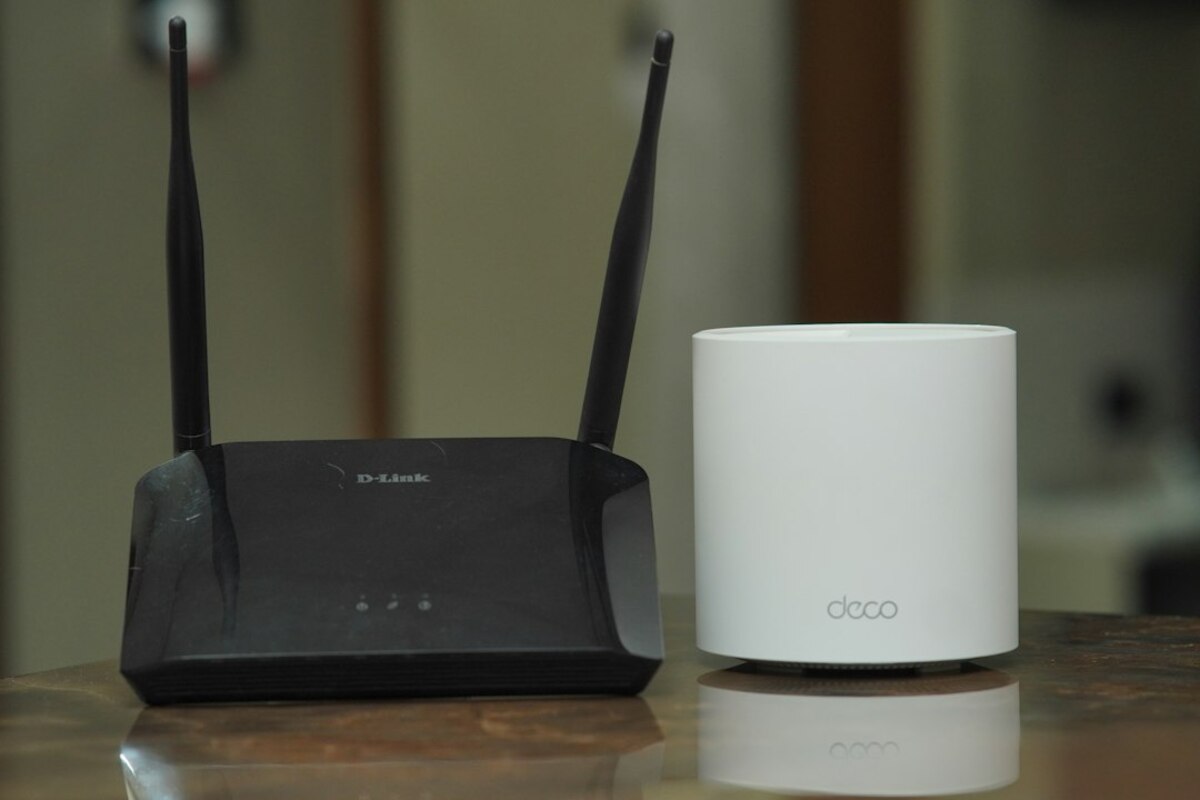
- Wi‑Fi is shared “airspace,” so nearby networks and devices compete for the same channels.
- Even with fast internet, a busy router, bad channel choice, or weak signal can cause slowdowns.
- Small changes—better router placement, switching bands, and timing heavy tasks—often make the biggest difference.
The “night slowdown” isn’t always your internet—it’s your Wi‑Fi
You sit down after dinner, open a show, and suddenly everything buffers. Work calls sound choppy. Pages take a beat too long to load. It’s easy to assume your internet provider is “throttling” you, but in many homes the bottleneck is closer than you think: the Wi‑Fi signal inside your own space.
A simple way to picture it: your internet connection (from your provider) is like a water main coming into your house. Your Wi‑Fi is the plumbing inside the house. If the water main is fine but your pipes are narrow, kinked, or everyone turns on a tap at once, your shower still turns weak.
At night, more people in your home are online at the same time. And in apartments or dense neighborhoods, your neighbors are also online at the same time—on the same shared airwaves. Wi‑Fi isn’t a private wire; it’s radio. And radio space can get crowded.

What’s actually causing the traffic jam (in plain language)
Wi‑Fi works by sending data through the air on specific “channels.” Think of channels like lanes on a highway. If too many cars pile into the same lane, traffic slows—even if the highway itself is huge.
There are a few common reasons the highway gets jammed at night:
1) More devices are competing for turns.
Wi‑Fi is polite by design. Most devices use a “listen before talk” approach: they check if the channel is busy and wait their turn. When many devices are active—phones syncing photos, TVs streaming, laptops downloading updates—each device gets fewer chances to speak. The result feels like “slow internet,” but it’s really “too many people trying to talk on the same walkie‑talkie channel.”
2) Your neighbors’ Wi‑Fi networks add interference.
In an apartment building, you might see 20–50 networks in a scan. Many of them overlap. Even if they’re password‑protected (so you can’t join), their signals still occupy space in the air. At peak times, those networks are busier, so your network has to wait more often.
3) 2.4 GHz travels farther, but it’s crowded and slow.
Most routers broadcast on two main “bands”: 2.4 GHz and 5 GHz (and increasingly 6 GHz with Wi‑Fi 6E/7). The 2.4 GHz band is like an old, popular road: it reaches far and goes through walls better, but it has fewer usable lanes and lots of old vehicles on it. It’s also where many non‑Wi‑Fi devices live (some baby monitors, older Bluetooth gadgets, certain smart home gear), which can add noise.
4) 5 GHz is faster, but walls can “eat” it.
5 GHz can carry more data, usually with less neighborhood interference, but the signal doesn’t travel as well through obstacles. So at night, if you’re in a back room and your signal is already weak, any extra contention or interference can tip things from “fine” to “buffering.”
5) Your router can become the bottleneck.
Even if you pay for fast service, the router still has to manage many connections, encrypt traffic, and coordinate transmissions. Older routers (or provider “all‑in‑one” units under heavy load) can struggle when multiple people stream, game, and video call at once.
6) One slow device can hog time.
Here’s a sneaky one: Wi‑Fi airtime is shared. If a device has a weak signal (say, a phone at the edge of coverage), it may transmit at a slower rate and require more retries. That can consume disproportionate airtime, reducing performance for everyone else—like a delivery truck doing 20 mph in the fast lane.
The details can get technical fast, but this table summarizes the most common “night slowdown” culprits and what they feel like:
| What’s happening | What you notice | Typical situation |
|---|---|---|
| Channel congestion (many networks/devices) | Random buffering, lag spikes, inconsistent speed tests | Evenings in apartments or dense neighborhoods |
| Weak signal in part of the home | One room is “bad,” moving closer helps immediately | Router in a corner, behind furniture, or on a lower floor |
| Router underpowered or overheating | Everything slows after hours of use; reboot “fixes” it briefly | Older hardware, many smart devices, lots of streaming |
| Too many devices doing heavy tasks at once | Video calls suffer when someone starts a big download | Family homes, shared apartments, game updates at night |
A quick real‑life scenario: imagine you’re in a café with one power outlet strip. At 9 a.m., one person charges a laptop and it’s fine. At 7 p.m., six people show up and everyone has a laptop, phone, earbuds, and a tablet. The outlet strip didn’t change—but the experience did. Wi‑Fi works the same way.
Simple checks that tell you where the problem is
Before you change settings or buy anything, it helps to figure out whether the slowdown is coming from your provider connection or your Wi‑Fi layer. You can do a few low‑effort checks:
- Check speed near the router. Stand a few feet away from the router and run a speed test. Then run the same test in the room where it feels slow. If the near‑router result is much better, the issue is mainly Wi‑Fi coverage/interference.
- Try one wired test (if possible). If you can plug a laptop into the router with an Ethernet cable, run a speed test. If wired is stable but Wi‑Fi isn’t, your provider is probably fine.
- Notice time patterns. If it’s consistently worse at the same hours, congestion (neighbors + household) is a prime suspect.
- Look for “one device triggers chaos.” If every time someone starts a console update your call breaks up, you may need better traffic management (QoS) or to move that device to Ethernet.
If you want a more visual clue, many routers (and some phone apps) show signal strength per device. A device that’s frequently “Poor” or bouncing between bands can drag the whole experience down, especially during busy periods.
What actually helps (without turning you into a network engineer)
You don’t need to memorize standards or decode acronyms to improve night performance. Most wins come from reducing interference, improving signal quality, and giving your busiest devices a cleaner path.
1) Move the router like it matters—because it does.
Router placement is often the cheapest upgrade. Wi‑Fi signals spread outward like light. If the router is stuffed behind a TV, inside a cabinet, or on the floor, you’re wasting signal before it even leaves the room.
- Place it as central as possible.
- Elevate it (a shelf is better than the floor).
- Keep it away from large metal objects and dense clutter.
- If you have antennas, try a mix of vertical and angled orientations to help coverage across floors and rooms.
2) Use the right band for the job.
Many routers combine bands under one network name, automatically steering devices. That’s convenient, but not always optimal.
As a practical rule:
- 5 GHz for streaming, gaming, video calls—especially if you’re reasonably close to the router.
- 2.4 GHz for farther rooms, basic browsing, and many smart home devices (lights, plugs) that don’t need high speed.
If your router allows it, giving 2.4 GHz and 5 GHz separate names (like “Home‑WiFi” and “Home‑WiFi‑5G”) can let you choose deliberately. For example, you can keep the TV on 5 GHz so it doesn’t cling to a weaker 2.4 GHz signal across the house.
3) Let the router pick a better channel—or pick it yourself.
In crowded areas, the “automatic” channel choice isn’t always best, especially if conditions change at night. Some routers can rescan and adapt; others pick once and stick to it.
In plain terms, you’re trying to find a lane that fewer neighbors are using. If your router has a “Wi‑Fi analysis” or “optimize channel” option, try it during peak hours (when it’s worst), not at noon when everything looks calm.
4) Give the hungriest devices a wire.
Ethernet still wins for reliability. If you have a desktop PC, gaming console, or streaming box that sits in one spot, wiring it can free up Wi‑Fi airtime for everything else.
If running a long cable is impossible, a mesh system with a good “backhaul” (a dedicated link between nodes, ideally wired) can help. But note: wireless mesh can also consume airtime—so placement and model choice matter.
5) Schedule the big stuff.
A lot of “night slowdown” is simply peak demand. If you can, schedule cloud backups, system updates, and large downloads for late night or early morning. Many devices let you set “active hours” or update windows.
Think of it like doing laundry: if you run the washer, dryer, and dishwasher all at once, something’s going to feel slow—whether that’s water pressure, power draw, or your patience.
6) Turn on QoS (traffic prioritization) if your router supports it.
Quality of Service (QoS) is basically a bouncer for your network: it tries to make sure time‑sensitive traffic (video calls, gaming) doesn’t get shoved aside by a huge download.
QoS won’t create speed from nothing, but it can make a crowded network feel far more usable. If your router offers a simple toggle like “Optimize for video calls/gaming,” it’s worth trying.
7) Upgrade only when you’ve outgrown the gear.
If your router is several years old, you have many devices, and you regularly hit evening congestion, a newer router can help—especially one designed for dense device environments (often marketed with Wi‑Fi 6/6E/7). The practical benefits are usually:
- Better handling of many simultaneous devices
- Improved range and beamforming
- Access to less crowded bands (like 6 GHz, if your devices support it)
The key is matching the upgrade to the problem. If your issue is weak signal in a far room, a single expensive router in the same bad location may not fix it. Placement, mesh, or wiring might matter more.
Sometimes neighborhood internet nodes can get busy, but many “evening slowdowns” are caused by Wi‑Fi congestion and weak signal inside the home. Testing near the router and (if possible) with Ethernet helps separate provider issues from Wi‑Fi issues.
Sometimes neighborhood internet nodes can get busy, but many “evening slowdowns” are caused by Wi‑Fi congestion and weak signal inside the home. Testing near the router and (if possible) with Ethernet helps separate provider issues from Wi‑Fi issues.
A reboot can clear memory leaks, reset radio conditions, renegotiate connections, and sometimes select a different channel. If you need to reboot often, it may point to overheating, aging hardware, or settings that need adjustment.
A reboot can clear memory leaks, reset radio conditions, renegotiate connections, and sometimes select a different channel. If you need to reboot often, it may point to overheating, aging hardware, or settings that need adjustment.
Mesh helps most when your problem is coverage (dead zones). If your main issue is neighborhood congestion, mesh can still help by improving signal quality in rooms that were previously weak—but it won’t eliminate outside interference. A wired backhaul (nodes connected by Ethernet) usually gives the best results.
Mesh helps most when your problem is coverage (dead zones). If your main issue is neighborhood congestion, mesh can still help by improving signal quality in rooms that were previously weak—but it won’t eliminate outside interference. A wired backhaul (nodes connected by Ethernet) usually gives the best results.
If you try just two changes, make them these: place the router better, and get high‑demand devices onto 5 GHz or Ethernet. Those steps address the most common “night traffic jam” causes without requiring you to touch advanced settings.