What’s a Passkey—and Why It’s Replacing Passwords on Your Phone and Laptop
Passkeys let you sign in with Face ID, fingerprint, or a device PIN—without typing a password. Here’s how they work and what to watch for.
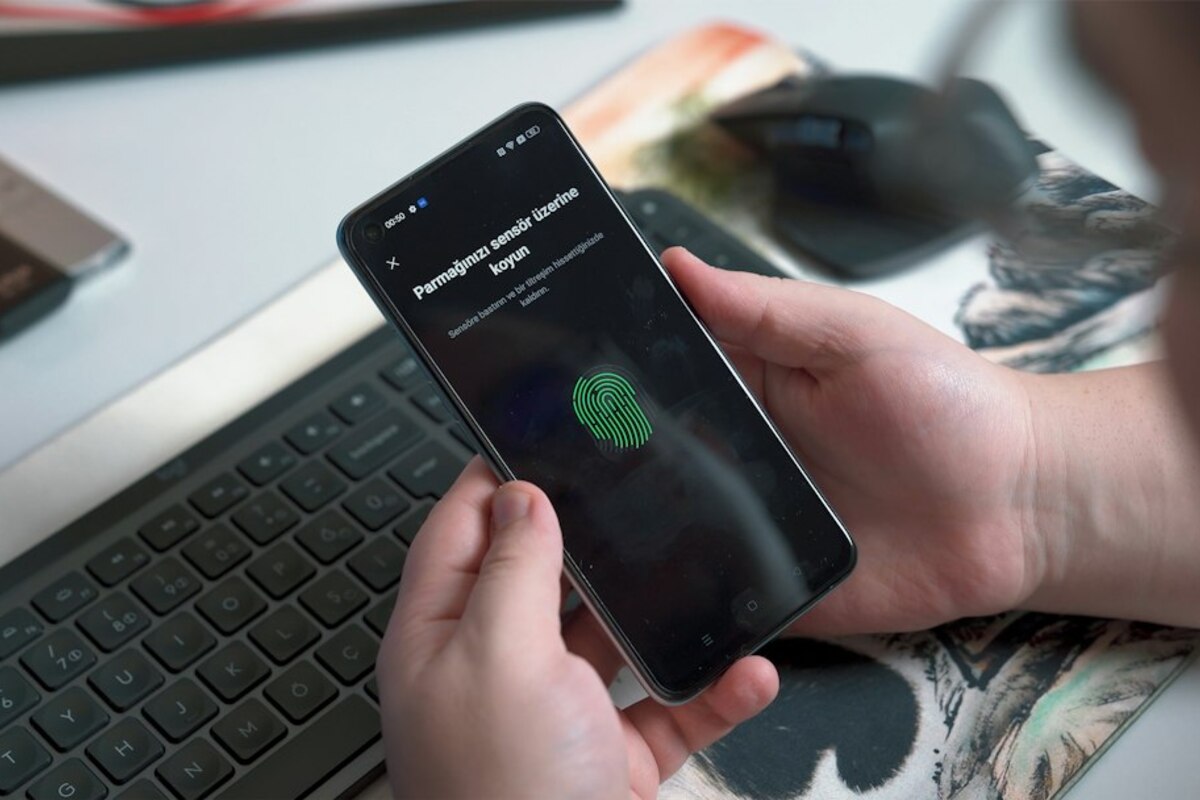
- A passkey is a safer, simpler sign-in method that uses your device (and biometrics) instead of a memorized password.
- Passkeys resist phishing because there’s no reusable secret to steal or type into a fake website.
- You can still get locked out if you don’t plan recovery—device loss and cross-device access matter.
Passkeys in plain English: “Prove it’s you” without sharing a secret
Passwords are like a secret phrase you whisper to a doorman every time you want to enter. The problem is you end up whispering that secret phrase everywhere: real doors, fake doors, doors run by strangers, doors with sketchy locks. And once someone learns your phrase, they can repeat it forever.
A passkey changes the whole model. Instead of relying on something you know (a password), it relies on something you have (your phone or laptop) plus a quick unlock (Face ID, fingerprint, or your device PIN). In everyday terms, it’s less like whispering a secret and more like showing a secure ID card that only works for one specific building.
You may have already seen prompts like:
- “Sign in with a passkey”
- “Use Face ID / Touch ID to sign in”
- “Use your security key or phone to log in”
That’s passkeys entering daily life—on email providers, shopping sites, banking portals, and workplace tools. They’re being adopted because they reduce two big headaches at once: account takeovers (often caused by phishing and reused passwords) and password fatigue (reset loops, forgotten logins, and dozens of variations of the same “strong” password).
Here’s the key idea: a passkey uses a pair of digital keys—one public, one private.
| Piece | Where it lives | What it does (simple version) | What a thief can do with it |
|---|---|---|---|
| Public key | Stored by the website/app | Helps verify you when you sign in | Basically nothing useful by itself |
| Private key | Stays on your device (or secure cloud sync) | Proves it’s you by signing a one-time challenge | Hard to steal; not typed or shared with sites |
Think of it like this: the website has a lock (public key information) that can check if a key fits—but it never receives a copy of your actual key. Your device holds the private key, and it will only use it after you unlock the device with Face ID, fingerprint, or your PIN.
This is why passkeys are often described as “passwordless,” even though you still unlock something. Your unlock (biometric or PIN) isn’t sent to the website. It’s only used locally to allow your device to use the private key.

Why passkeys are harder to scam: phishing stops working (most of the time)
Phishing works because passwords are reusable. If someone tricks you into typing your password into a fake site, they can take that password and use it on the real site immediately. Even worse, many people reuse passwords across sites, so one mistake can spill into multiple accounts.
Passkeys change the game because there’s nothing meaningful to “type in” and steal. A passkey login typically checks the website identity behind the scenes. If you land on a fake look‑alike domain, your device won’t happily “hand over your secret,” because there isn’t a secret being transmitted the same way. Instead, the device signs a one-time challenge that’s tied to the real site.
Picture a common scenario:
- You get an email: “Your account will be suspended—sign in now.”
- You click a link that looks legitimate, but it’s a slightly misspelled domain.
- With passwords, you might type your login and give the attacker exactly what they need.
- With passkeys, the sign-in prompt is tied to the real domain; on the fake domain the experience often fails, looks different, or never offers the passkey you expect.
This doesn’t mean passkeys magically end all scams. Attackers can still:
- Trick you into approving something you didn’t mean to approve (social engineering).
- Steal your unlocked device or exploit weak device PINs.
- Target account recovery (for example, hijacking email or SIM-swapping phone numbers) if a service still falls back to less secure methods.
But passkeys remove one of the biggest historical weak points: the habit of repeatedly handing out the same secret to countless sites.
Not exactly. 2FA adds an extra step (like a code) on top of a password. Passkeys aim to replace passwords entirely. In practice, passkeys often feel like strong 2FA because you need your device and a local unlock (Face ID/fingerprint/PIN).
Not exactly. 2FA adds an extra step (like a code) on top of a password. Passkeys aim to replace passwords entirely. In practice, passkeys often feel like strong 2FA because you need your device and a local unlock (Face ID/fingerprint/PIN).
No. Your biometric data stays on the device (in secure hardware, depending on the platform). The website simply gets a “yes, this device proved the user unlocked it” result via cryptographic proof—not your face scan or fingerprint.
No. Your biometric data stays on the device (in secure hardware, depending on the platform). The website simply gets a “yes, this device proved the user unlocked it” result via cryptographic proof—not your face scan or fingerprint.
Yes, often. Many ecosystems can sync passkeys across your devices (for example, via a secure cloud keychain). You can also use your phone to sign in on a nearby computer by approving a prompt.
Yes, often. Many ecosystems can sync passkeys across your devices (for example, via a secure cloud keychain). You can also use your phone to sign in on a nearby computer by approving a prompt.
How passkeys show up in real life: sign-in flows you’ll actually encounter
Passkeys aren’t one single “button”—they show up as a few practical patterns. If you’ve ever been confused by a login prompt that didn’t ask for a password, this section is the map.
1) Creating a passkey after a normal login
A lot of services start by letting you log in the old way once (password + maybe a code), then they offer: “Add a passkey.” When you accept, your device generates the key pair and registers the public key with that service.
What it feels like: You log in like usual, then your phone pops up Face ID, and suddenly you’re “done” for future logins.
2) Logging in with a passkey on the same device
This is the smoothest case. On your laptop, you visit a site, hit “Sign in,” and your system offers a passkey. You touch the fingerprint reader (or use a face scan), and you’re in.
What it feels like: Like unlocking your device—because that’s essentially what you’re doing.
3) Logging in on a different device using your phone
Imagine you’re on a shared computer at a hotel business center (or a new work laptop you haven’t set up fully). You choose “Use a passkey,” then pick an option like “Use a phone” or scan a QR code. Your phone asks you to approve the sign-in (Face ID/Touch ID), and the computer is signed in—without you typing a password on the shared machine.
This is one of the most everyday-life benefits: you reduce the times you type sensitive credentials on devices you don’t fully trust.
4) Passkeys that sync (and why people argue about it)
Some passkeys are synced across devices through a secure cloud account (often the same account that syncs passwords today). This makes life convenient: set up once, use everywhere.
The trade-off is philosophical and practical:
- Convenience: great—your new phone still has your passkeys.
- Dependency: you’re relying on that ecosystem’s account recovery and security.
- Lock-in: moving between ecosystems can be less straightforward than copying a password.
5) Work accounts and shared environments
In workplaces, passkeys can reduce help-desk tickets (“I forgot my password again”), but they also introduce questions IT teams care about: device management, employee offboarding, and recovery flows. For the average employee, the visible change is usually simple: more logins become “approve on your phone” or “use Windows Hello / Touch ID” instead of “type a complex password + code.”
Common misunderstandings that cause confusion
- “If I lose my phone, I lose my accounts.” Not automatically—but recovery depends on whether your passkeys sync, whether you have backup devices, and how the service handles account recovery.
- “Passkeys mean no PINs anymore.” You may still use a device PIN as a fallback unlock method. The difference is the PIN stays on the device; it isn’t your website password.
- “This is just passwords with a new name.” The user experience can look similar (tap to sign in), but the security model is different: no shared secret is stored on the website like traditional password hashes, and nothing reusable is typed into a webpage.
A quick “should I use it?” checklist
| Question | If your answer is “yes” | Why it matters |
|---|---|---|
| Do you reuse passwords or struggle to remember them? | Passkeys are worth enabling first on your most important accounts. | They reduce the damage from phishing and reuse. |
| Do you have more than one trusted device (phone + laptop/tablet)? | You’ll have smoother recovery if one device is lost. | Backup access is the biggest practical pitfall. |
| Do you often sign in on new/shared computers? | Phone-based passkey sign-in can be much safer. | You avoid typing secrets on unknown keyboards. |
Passkeys are one of those rare tech shifts that are both more secure and less annoying—but only if you treat your devices and recovery options as part of your security. If a service you use daily offers passkeys, it’s usually a sign they’re becoming mainstream—and a good moment to learn the flow before you’re forced to learn it in a hurry.