How to Use a “Clipboard Manager” to Stop Re-Copying the Same Things All Day
Tired of losing copied text the moment you copy something new? A clipboard manager remembers it all—snippets, links, screenshots—so you can paste smarter.
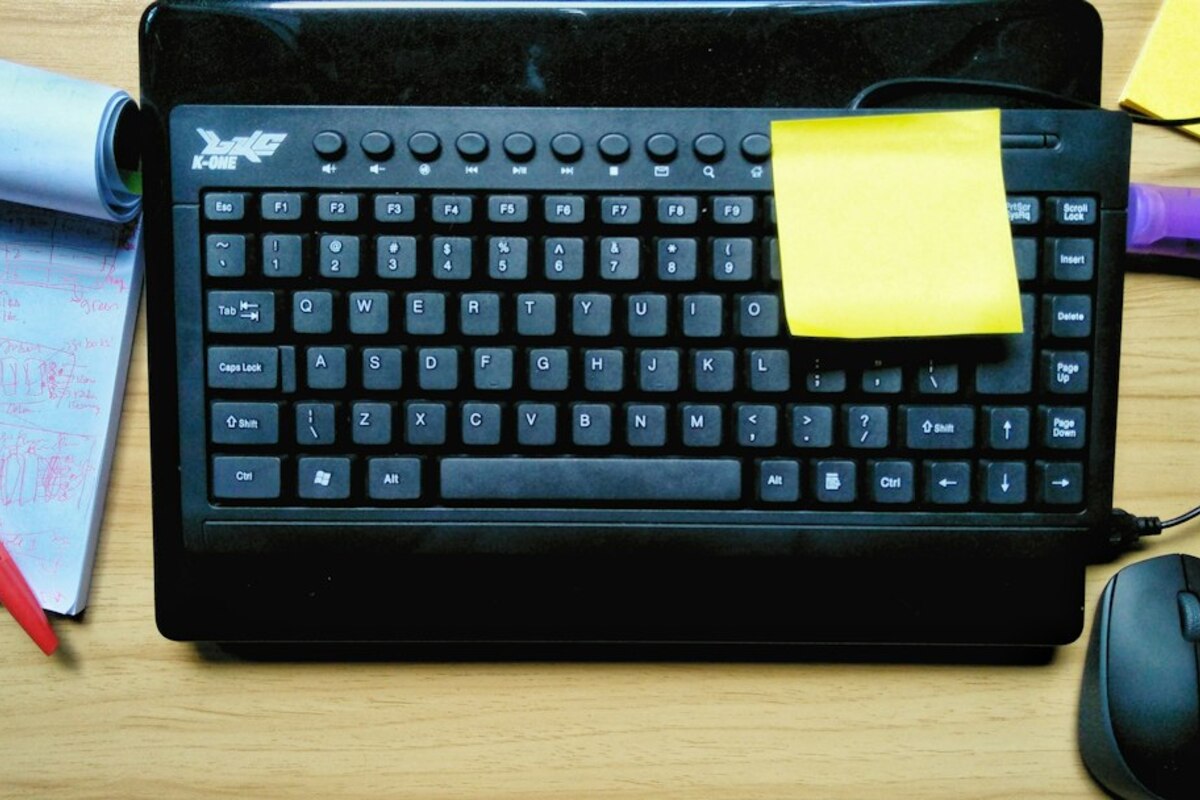
- A clipboard manager keeps a searchable history of what you copy—so you can paste older items anytime.
- Simple rules (pin, favorites, and “don’t save” apps) make it useful without feeling risky.
- You can build a small library of reusable snippets for emails, addresses, and common replies.
The tiny daily frustration you’ve probably accepted
You copy a tracking number, then copy an address, then copy a discount code. You switch back to the first tab and—gone. Your clipboard only remembers the most recent thing you copied, so you repeat the whole routine: highlight, copy, alt-tab, paste. It’s not dramatic, but it’s constant. The “two-second annoyance” that happens 30 times a day becomes a real drain.
A clipboard manager fixes that by turning your clipboard into a history. Instead of holding one item, it keeps a list of many items you copied earlier—text, links, and often images too. You can search that list, pin your favorites, and paste older entries whenever you want.
Think of your regular clipboard like a single sticky note on your monitor: you can overwrite it, but you can’t look back. A clipboard manager is like a small stack of sticky notes you can flip through—with a search box.
This guide is for everyday use: work messages, online forms, shopping, school, home admin. No advanced setup required—just a few habits that make it feel instantly helpful.

What a clipboard manager actually does (in plain language)
At its core, a clipboard manager:
- Records what you copy (usually the last 50–500 items, depending on settings).
- Lets you browse and search that history.
- Lets you paste an older item without re-copying it from the original source.
Many also include a few extra features that matter in real life:
- Pinning / favorites for things you reuse (like your mailing address or a standard reply).
- Keyboard shortcuts to open the history quickly.
- Formatting options like “paste as plain text” (great for removing weird fonts from copied web content).
- Snippets (saved templates you can paste anytime).
Here’s a simple scenario that shows the value:
Scenario: You’re applying for something online. The form asks for your address, your ID number, your employer’s address, and a short description of your role. You’re switching between a PDF, a note, and the form. With a clipboard manager, you can copy each item once, then paste them in the correct fields in any order—even if you copied something else in between.
Without it, you’re stuck in a “copy-paste panic” where copying the next field deletes the last one.
Most modern operating systems also have a basic clipboard history option. The built-in versions can be enough for many people, and they’re a great place to start. Dedicated clipboard managers usually add better search, better snippet features, and more control.
| Problem you notice | What clipboard history changes | Everyday example |
|---|---|---|
| You copied something important, then copied something else | You can go back and paste the earlier item | Copy a reference number, then copy an email—still able to paste the reference number later |
| You repeatedly type the same info | You save it once as a pinned item/snippet | Your address, invoice details, meeting link, or “here’s my availability” message |
| Copied text looks messy when pasted | You can paste without formatting | Pasting from a website into a doc without dragging weird fonts and spacing along |
Used well, a clipboard manager is less about “power user” tricks and more about staying in flow. You stop interrupting yourself to hunt for that one sentence you just had.
Set it up once: the few settings that make it feel safe and useful
The main hesitation people have is reasonable: “If it remembers what I copy… does it remember sensitive stuff too?” The answer depends on the app and your settings, but you can make it much more comfortable with a couple of choices.
1) Decide what should never be stored
Most good clipboard managers let you exclude certain apps or types of content. This is the single most confidence-boosting setup step. Common exclusions:
- Password managers (and any login-related apps)
- Banking apps/sites or anything with one-time codes
- Remote work tools that might contain confidential client info (depending on your role)
Even if you don’t handle “top secret” information, it’s nice to know your clipboard history isn’t quietly collecting everything.
2) Shorten the history length (at first)
You don’t need 10,000 items on day one. Start small—something like 50–200. That’s enough to feel the benefit without creating a huge archive of random bits. If you love it later, increase it.
3) Turn on “clear history” shortcuts or auto-clean
Look for one of these options:
- Clear all history (manual button or keyboard shortcut)
- Auto-delete after X days (a simple “rolling window,” like 7 or 30 days)
This turns clipboard history into a helpful recent memory rather than a permanent record.
4) Learn one shortcut: “Open clipboard history”
The difference between “I installed it” and “I use it daily” is usually one shortcut. Make it easy enough that you don’t think about it.
Example workflow: copy as usual → press the shortcut → type two letters to search → hit Enter to paste.
Once that becomes muscle memory, you’ll wonder why you ever lived without it.
5) Add two pinned items you genuinely reuse
Don’t overdo it. Add just two things you know you’ll paste again soon, such as:
- Your full mailing address (with line breaks)
- A polite, reusable message like: “Thanks—received. I’ll take a look and get back to you by tomorrow.”
That small win makes the tool feel “real” immediately.
It can, which is why exclusions matter. Set it to ignore password managers and sensitive apps/sites, keep history length modest, and use quick “clear history” controls. If your work has policies, follow them.
It can, which is why exclusions matter. Set it to ignore password managers and sensitive apps/sites, keep history length modest, and use quick “clear history” controls. If your work has policies, follow them.
No. It’s handy for students (quotes, citations), households (addresses, serial numbers, instructions), online shopping (coupon codes, tracking IDs), and anyone juggling messages across apps.
No. It’s handy for students (quotes, citations), households (addresses, serial numbers, instructions), online shopping (coupon codes, tracking IDs), and anyone juggling messages across apps.
Use it for one day with intent: copy normally, but whenever you catch yourself going back to re-copy something, open the clipboard history instead. After a few wins, it becomes automatic.
Use it for one day with intent: copy normally, but whenever you catch yourself going back to re-copy something, open the clipboard history instead. After a few wins, it becomes automatic.
Everyday workflows that make it feel like a superpower
A clipboard manager is most satisfying when you stop treating it like a “history list” and start using it like a small personal assistant. Here are practical ways to do that, with examples that fit regular life.
Workflow 1: The “paste queue” for forms and admin tasks
When you’re filling out anything repetitive—insurance forms, job applications, school portals, shipping labels—copy all the needed bits first, then paste them in order.
- Copy: full name → address → phone → email → reference number
- Then paste each one into the form fields using clipboard history
This avoids the common trap of bouncing between tabs and losing your place.
Workflow 2: Quick responses without sounding like a robot
Snippets aren’t just for customer support teams. You can store “semi-templated” messages that still sound human.
Examples you can personalize lightly each time:
- “Thanks for the update—got it. If anything changes on my end, I’ll let you know.”
- “I can do Tuesday or Thursday after 3pm. What works best for you?”
- “Here’s the link again in case it got buried: [PASTE LINK]”
The goal isn’t to become automated—it’s to avoid retyping the same friendly sentences when you’re tired or in a hurry.
Workflow 3: “Paste as plain text” to clean up weird formatting
You know that moment when you paste something into a document or email and suddenly the font changes, spacing looks off, or there’s a strange hyperlink? That’s formatting coming along for the ride.
A lot of clipboard tools let you paste plain text with a shortcut. Use it when copying from:
- Web pages
- PDFs
- Slide decks
- Marketing emails
Real-life effect: your notes and documents look consistent, and you spend less time “fixing” pasted text.
Workflow 4: Build a tiny “personal library” of reusable pieces
Instead of keeping everything in a notes app (where you have to search, open, select, copy), keep a handful of items pinned right in your clipboard manager:
- Your address formatted for shipping labels
- A short bio (one-sentence and three-sentence versions)
- Common links (portfolio, calendar booking link, meeting room link)
- Your device Wi‑Fi password for guests (if appropriate)
It’s like having a small drawer of “useful scraps” that you can paste from instantly.
Workflow 5: Compare two bits of text without juggling windows
Sometimes you copy one version of a sentence, then tweak it, then wonder which was better. Clipboard history lets you retrieve both versions quickly.
Example: you’re writing a message to your landlord and you soften the tone. With clipboard history, you can paste version A and version B into a draft and choose calmly—without trying to undo/redo your way through it.
A small habit that keeps it from becoming clutter
If you want clipboard history to stay useful, adopt this one rule: pin what you want to keep, clear what you don’t. Don’t expect the history list to remain meaningful forever. It’s allowed to be messy. Your pinned items are the “important shelf.”
Once you get comfortable, you’ll notice the change: you stop treating copying and pasting like a fragile one-shot action. It becomes flexible—more like choosing something from a menu. And that’s when the tool quietly pays you back, day after day, in small saved moments.